The State of Colorado uses Google's Data Studio to display complicated data to make it easier for our users to view. If you wish to download the data as a PDF file please complete the following steps.
First step: Use the blue hyperlink or the Data Studio button to go to the data studio page.

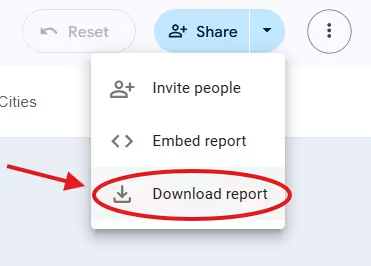
Second step: On the top of the page there will be a blue "Share" button. Place your mouse on the triangle part of the button.

Third Step: There will be a pop-up showing a number of options. Move your mouse down to "Download report" and click on it.
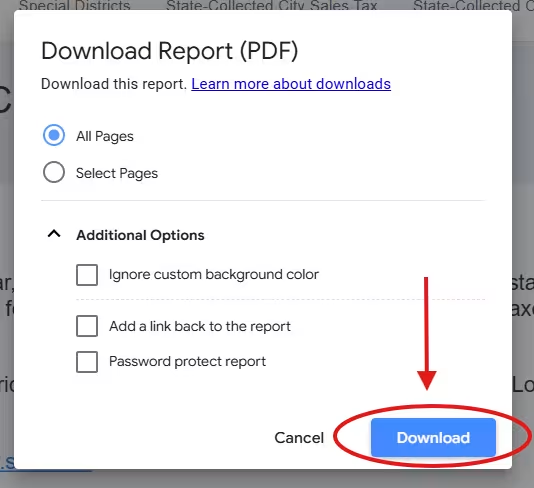
Fourth Step: Click on the blue "Download" button. You can leave the other options unchecked.
Fifth Step: The PDF will take some time to generate, after which it should automatically download to your computer.
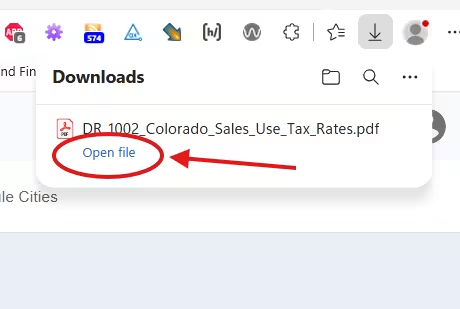
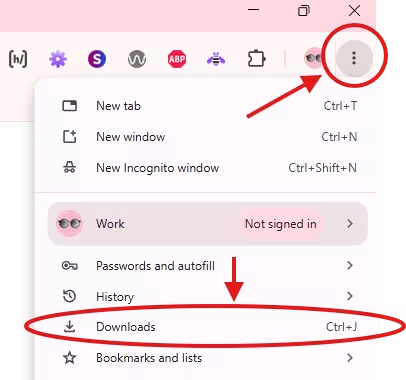
Sixth Step: Check your browsers download folder by clicking on the three dots in the top left and going down to "Downloads"